Open a Wiki
Use the dedicated Wiki section inside any project.
Project documentation
Keep your project knowledge, decisions, and documentation in one organized place. Mynix Wiki gives every project a dedicated space to create pages, store information, and keep team knowledge easy to find and update over time.
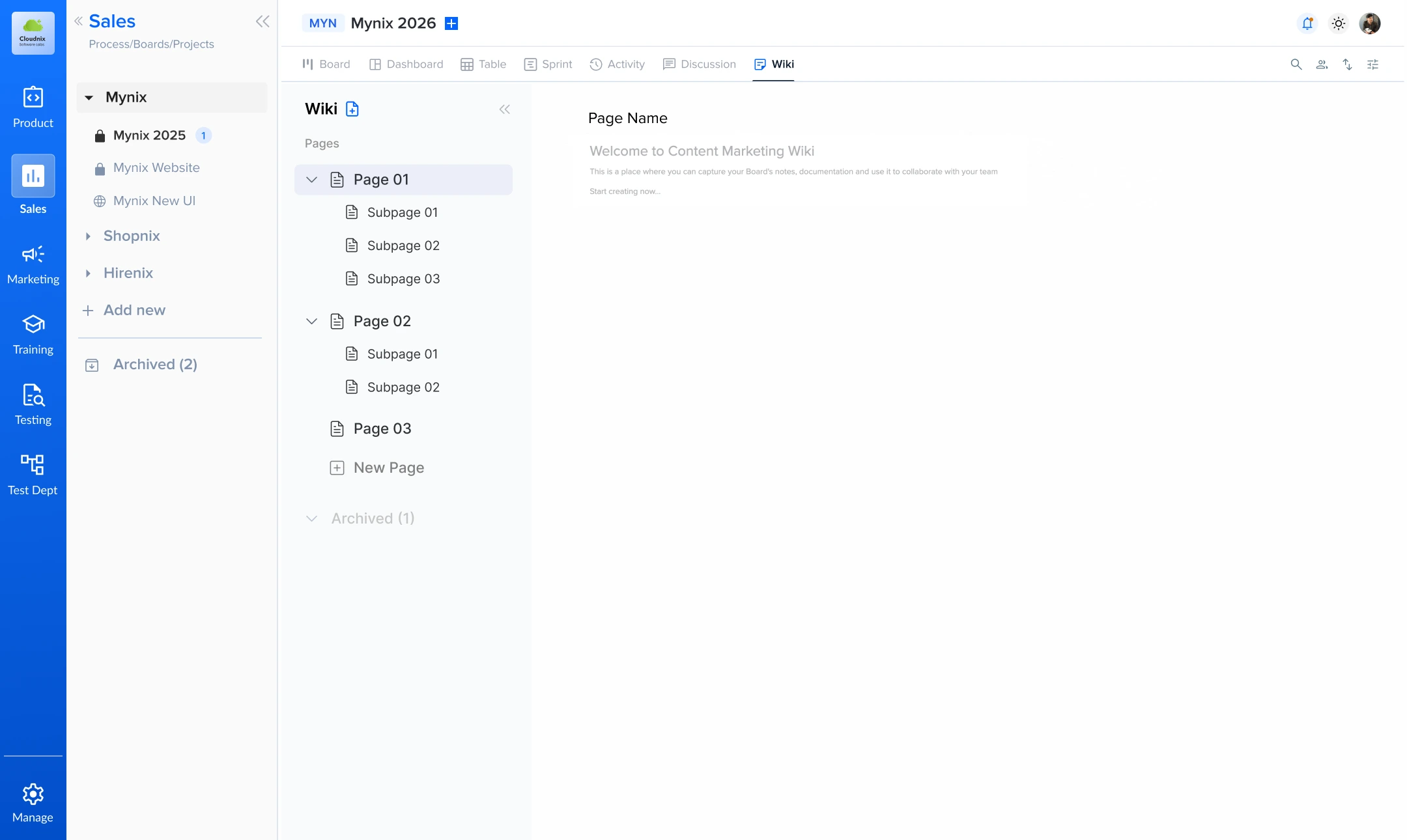
Wiki at a glance
Four things every project gets the moment you open the Wiki.
Use the dedicated Wiki section inside any project.
Navigate documents from the left-side page list.
Create and update project pages using a rich text editor.
Changes are saved automatically while you work.
Documentation that matches the work
Wiki lets your team create documentation that matches the way your project works. From requirements and meeting notes to processes and launch plans, everything can live in a structured knowledge base.
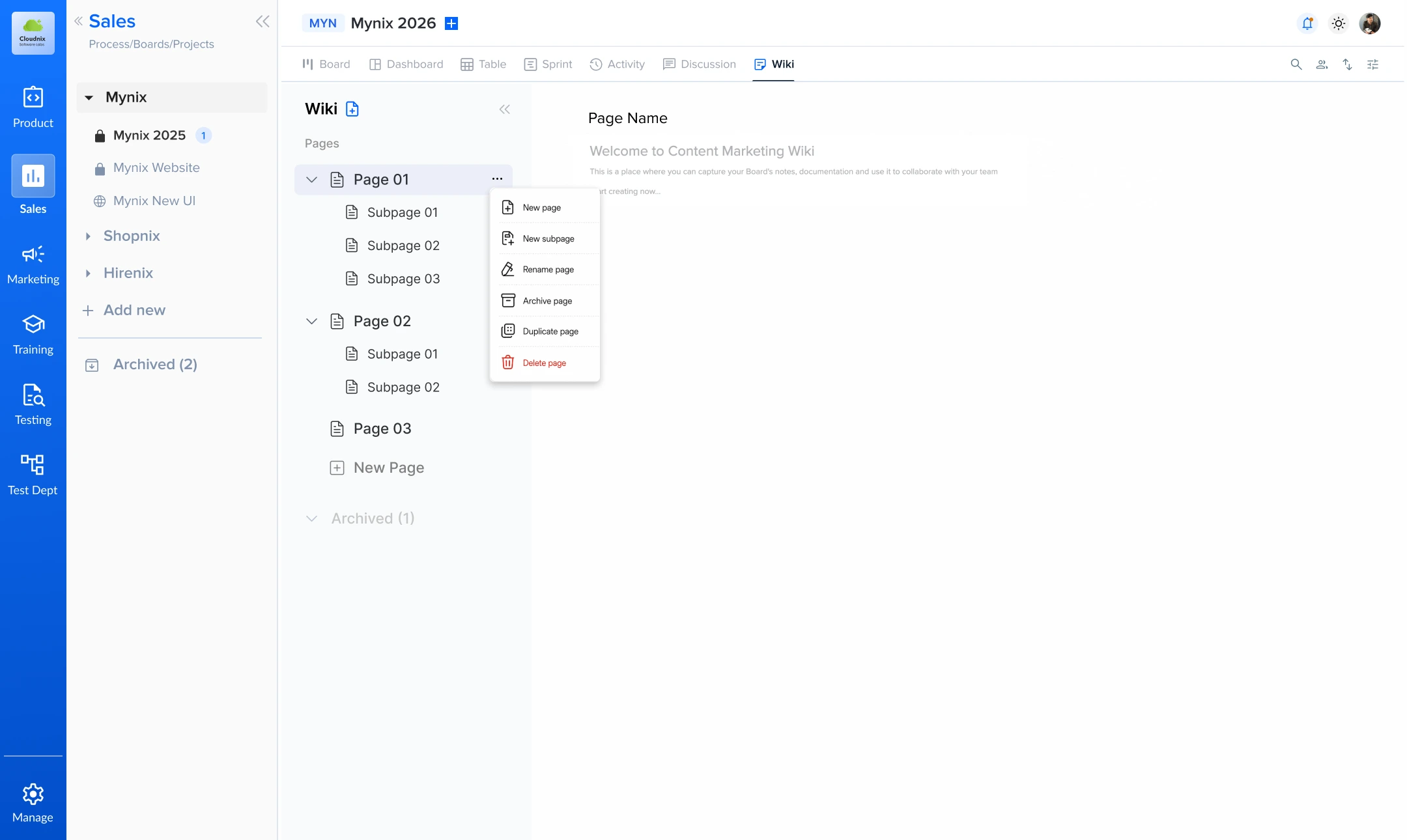
What you can document
Six document types that teams reach for most often.
Document scope, expectations, and business needs.
Capture workflows, guidance, and standard operating steps.
Keep decisions, action items, and follow-ups in one place.
Store rollout steps, checklists, and delivery milestones.
Share important references and internal learnings clearly.
Maintain structured knowledge for standards and guidelines.
Where to find Wiki
Open the project, then select Wiki from the left-side navigation. The screenshot below shows where the option lives.
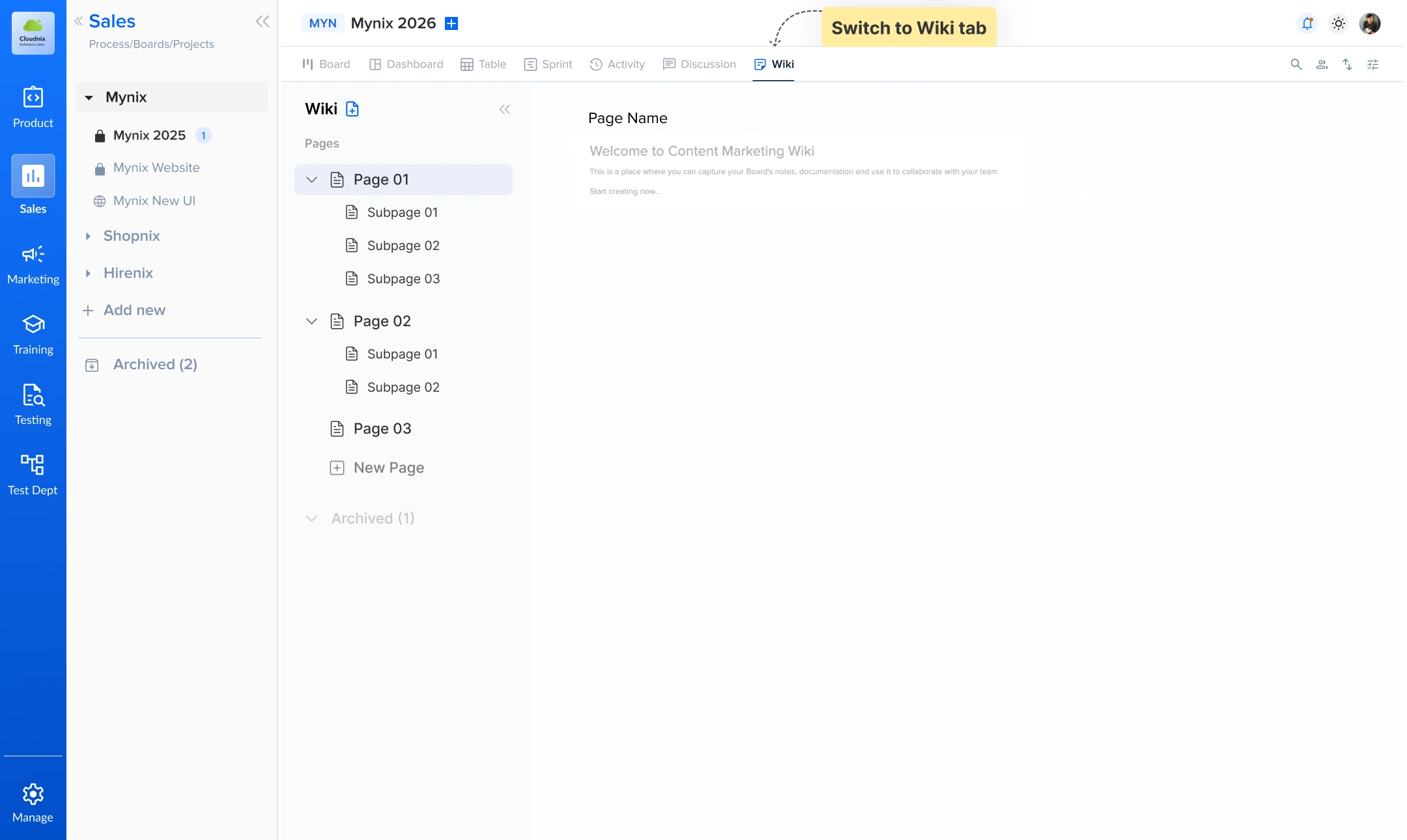
Open the project list from the main navigation to see every project you have access to.
Choose the project whose knowledge you want to document. The Wiki lives inside the project itself.
Select Wiki from the project menu to open its pages and start writing.
How Wiki helps teams
Four outcomes that follow a structured knowledge base.
Keep documentation in one place instead of spreading it across emails and notes.
Use pages and subpages to structure content by topic and project area.
Navigate to the right page without searching across disconnected tools.
Edit and save changes quickly as project information changes.
Wiki is available in every project. No separate setup is required to start creating and organizing documentation.
Every project already has a Wiki section ready to receive pages, subpages, and rich text content.
One place for project knowledge
Without a structured Wiki, teams often rely on scattered notes, chats, and documents. With Mynix Wiki, project knowledge lives in one place that is easy to browse, update, and revisit.
Create a page, organize it, and give every project a structured place for its knowledge.