Create · Task Assigned
Task Assigned: {view issue} · Task Name, Issue Name, Assigned by, Project Name.
Integrations · team communication
Connect Mynix with Slack to deliver real-time updates for issue assignments, task changes, and comment mentions. Keep teams informed without constantly switching between systems.
Connect Mynix directly to Slack
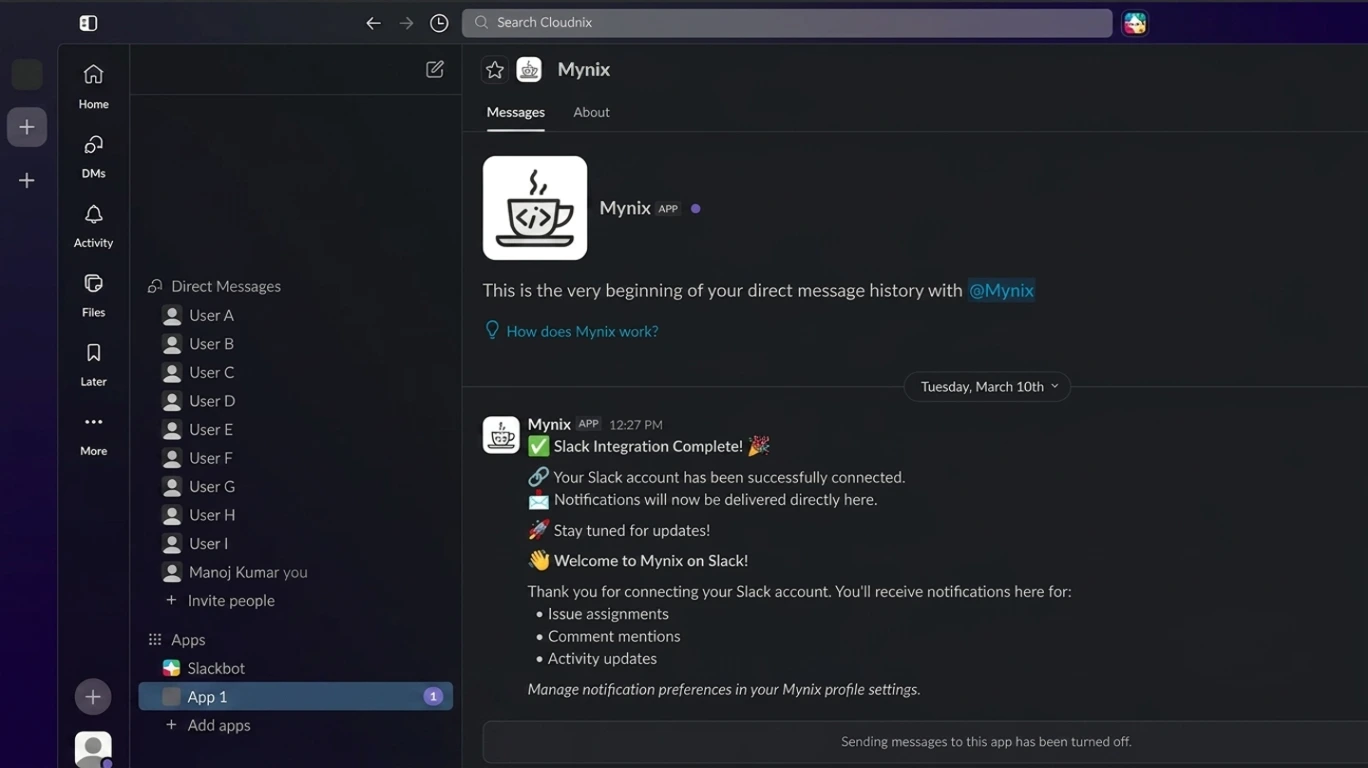
Slack Integration links Mynix events to a dedicated Mynix Slack app, allowing important workflow events to appear directly inside your team's Slack workspace with structured messages and direct links back to the work item.
Keep assignments, issue activity, and comment mentions visible where your team is already communicating.
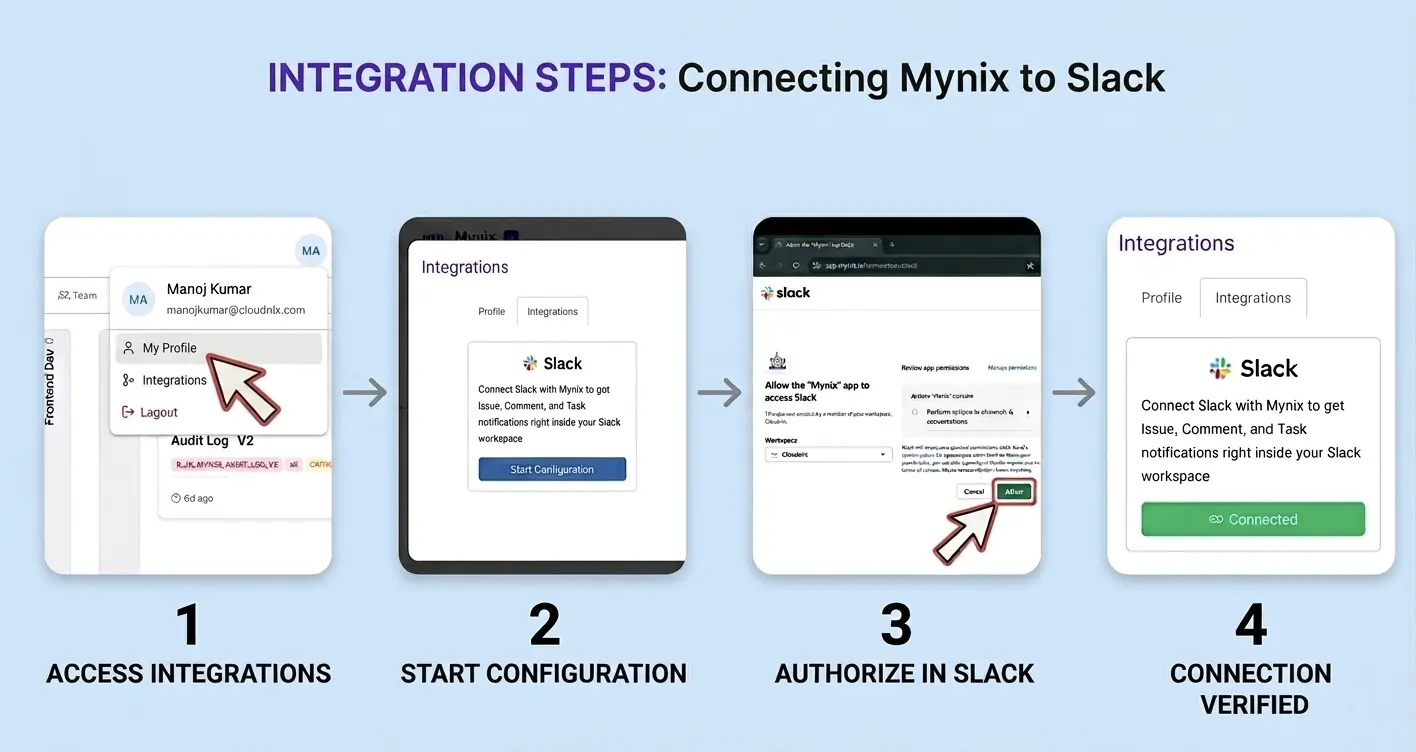
Authorize the Mynix Slack app in a separate browser tab.
Match Slack and Mynix email addresses before notifications are connected.
Select the company or entity that owns the operational context.
Open the relevant issue or task directly from the Slack message.
Authorize securely with Slack OAuth
Go to Settings → Integrations → Slack → Configure. Mynix opens Slack authorization in a new browser tab, where the user approves the Mynix Slack app.
Identity and entity context
Slack notifications need to reach the correct user and remain associated with the correct company, business unit, or client entity.
The Slack email address must match the Mynix email address.
Google-authenticated users keep their existing sign-in flow.
Choose the correct company or entity during connection setup.
Keep notifications aligned across multiple operational contexts.
Choose the right company or entity
During setup, users can select the appropriate company or entity for the Slack connection. This is especially important when the same person works across multiple business units, client entities, or operational environments.
Notifications remain associated with the correct operational context inside Mynix.
Issue assignment and updates
Slack notifications are tied to meaningful workflow actions rather than every possible activity. Each supported notification can include a direct link back to the relevant issue.
Keep task assignments visible
Tasks have their own notification coverage so teams can follow assignment and lifecycle changes without monitoring Mynix continuously.
Task Assigned: {view issue} · Task Name, Issue Name, Assigned by, Project Name.
Task Updated: {view issue} · Task Name, Issue Name, Updated by, Project Name.
Task Deleted · Task Name, Issue Name, Deleted by, Project Name.
No Slack trigger is required for list or view actions.
Never miss a comment mention
When a supported comment event occurs, Mynix can surface the activity in Slack with a direct link back to the related issue.
Keep the connection under control
Slack Integration is not a one-time setup with no way to maintain it later.
Initiate setup from Mynix settings and complete Slack OAuth authorization.
CreateSee the connected workspace, email, channel, and connection status.
ViewRenew access when it expires or switch the connected workspace or channel.
UpdateRemove the stored connection tokens for the relevant user or entity.
DeleteSecurity and visibility
Authorization tokens are stored securely rather than exposed in normal management.
Connection details show which Slack workspace and channel are associated.
Renew the connection if authorization expires or access needs to be restored.
Disconnect the integration and remove stored tokens when it is no longer needed.
Connect Mynix activity to Slack
Connect Slack once, match the right identity and entity, and let Mynix surface the workflow events that matter.
Go to Settings, hover over Slack, and click Configure.
Authorize the Mynix Slack app in a new browser tab.
Match email addresses and select the right operational context.
Receive assignment, update, and mention events with direct links.
Connect Slack, match the right identity and entity, and stay connected to the work without constantly switching systems.
Create
Comment mentioned: {view issue}
Issue Name · Mentioned by · Project Name
Update
Comment updated: {view issue}
Issue Name · Mentioned by · Project Name
Delete
Comment deleted
Issue Name · Mentioned by · Project Name
List / View
No Slack trigger is required for list or view actions.